License Management
Manage your Develocity license, including monitoring status, handling expiration events, and performing updates in both online and airgap environments.
License Status and Expiration
To view your current license entitlements, feature sets, and expiration date, go to .
Impact of Expiration
If your license expires, Develocity enters Read-Only mode. In this state, the following permissions are not granted to any users:
-
Publish Build Scan
-
Read and write Build Cache data
-
Use Test Distribution
Existing Build Scan data remains viewable.
| The Read Build Cache data permission continues to function as normal for users who have it. However, Develocity does not automatically grant it to users who had "Read and write Build Cache data". |
When the license expiration date is updated, Develocity restores full functionality and users' permissions automatically.
|
If the license check stays in a failed state for an extended period, Kubernetes might fail to pull Develocity Docker images or start new instances. |
Updating Your License
The method for updating your license depends on whether your Develocity instance has internet access.
Online Installations (Automatic)
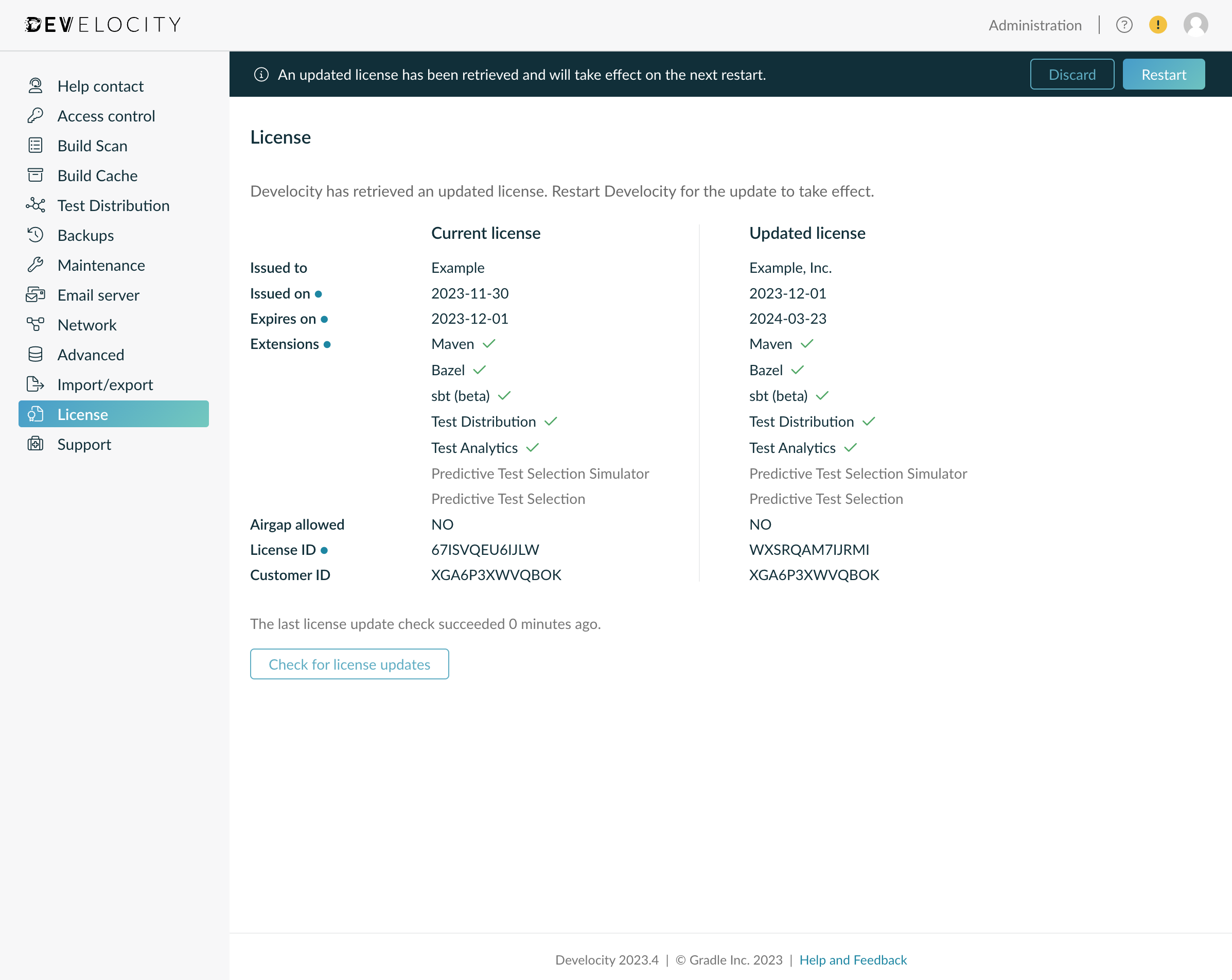
Online instances check the Gradle license server for updates on startup, then every hour. If a license update requires a restart to take effect, administrators see a notification in the Develocity UI.
To avoid expiration on an online installation, ask your customer success representative to extend your license. You do not need a new license file: Develocity applies the update automatically. If Develocity failed to start because the license expired, restart it once your representative extends the license.
The tab also lets you:
-
Verify the current license’s information, such as the expiration date
-
Compare the current license against an updated one that Develocity has downloaded
-
Restart Develocity to apply an updated license it has downloaded
-
Check whether license checks are functioning properly
-
Initiate an on-demand license check
|
If license checks fail consistently for 72 hours, the instance fails to restart until you restore connectivity or apply a valid license. |
Airgap Installations (Manual)
Airgap instances do not receive automatic license updates. Follow this sequence to manually update your license.
1. Obtain the License Key
Contact your customer success representative to receive your updated license file or key.
2. Update the Configuration
The global.license Helm value carries the license, not the unattended configuration file.
Update your values.yaml with the new license file contents:
global:
  license:
    file: «develocity.license contents» (1)
| 1 | The contents of the new develocity.license file. Alternatively, keep the license out of values.yaml and pass the file at upgrade time with --set-file global.license.file=./develocity.license, or reference a Kubernetes secret with global.license.secretName. |
3. Apply the Changes
Run helm upgrade against your installation to roll out the new license.
This applies to both Kubernetes and Standalone installations.
For the full upgrade commands, see the "Changing Configuration Values" sections of the Kubernetes and Standalone Helm chart configuration guides.
Configure via Helm
The license is not part of the Unattended Configuration schema, so a GitOps or automated workflow cannot set it there.
Manage it as a Helm value instead. Set it inline in values.yaml (global.license.file), pass it as a --set-file global.license.file argument, or reference a Kubernetes secret with global.license.secretName.
Deployment Templates
Download the appropriate YAML template to begin your infrastructure configuration.
For Develocity versions 2025.3 and prior, see the 2025.2 Administration Guide or the 2025.3 Administration Manual.
| Cluster Deployment |
Example template for cluster orchestration. |
| Standalone Deployment |
Example template for standalone setup. |
|
Pre-deployment Checklist
See Unattended Configuration for details. |
For further details, see the "Changing configuration values" sections of the Standalone and Kubernetes Helm chart configuration guides.
Troubleshooting
-
Expiration Mismatch: If the date in the UI does not match your contract, contact support.gradle.com.
-
Connectivity: If online updates fail, verify your Proxy Settings.
-
Support Bundles: If license issues persist, generate a Support Bundle for investigation.