System User
The system user provides a built-in local administrator account that bootstraps new installations and provides emergency access if external authentication (SAML/LDAP) fails.
Account Capabilities
The system user is hard-coded with critical administrative permissions, including:
-
Configure access control and identity providers.
-
Manage operational settings (email, storage, etc.).
-
Configure Edge nodes and Test Distribution.
-
Generate support bundles for troubleshooting.
|
For routine management, avoid using the system user.
Instead, use it only to create personal administrator accounts with the |
Accessing the System User
When you first log in as the system user, you must change the default, randomly generated password.
-
New Installation
-
Existing Installation
-
Unattended (GitOps)
Obtain the one-time default password using the methods in the Obtaining the Default Password section.
Note: This password is for one-time use only and is invalidated as soon as you set a custom password.
Sign in with the custom password created during the initial bootstrap. If this password is lost, you must reset it via the CLI.
If you defined a password in your values.yaml file during installation, use that value to log in.
You won’t be prompted to change it unless the configuration is modified.
Changing the System User Password via the UI
To change the system user password in the Develocity UI:
-
Log in to Develocity as a user with Administrator permissions.
-
Navigate to .
-
Enter the current password and the new password, confirm the new password, then click Save to update it.
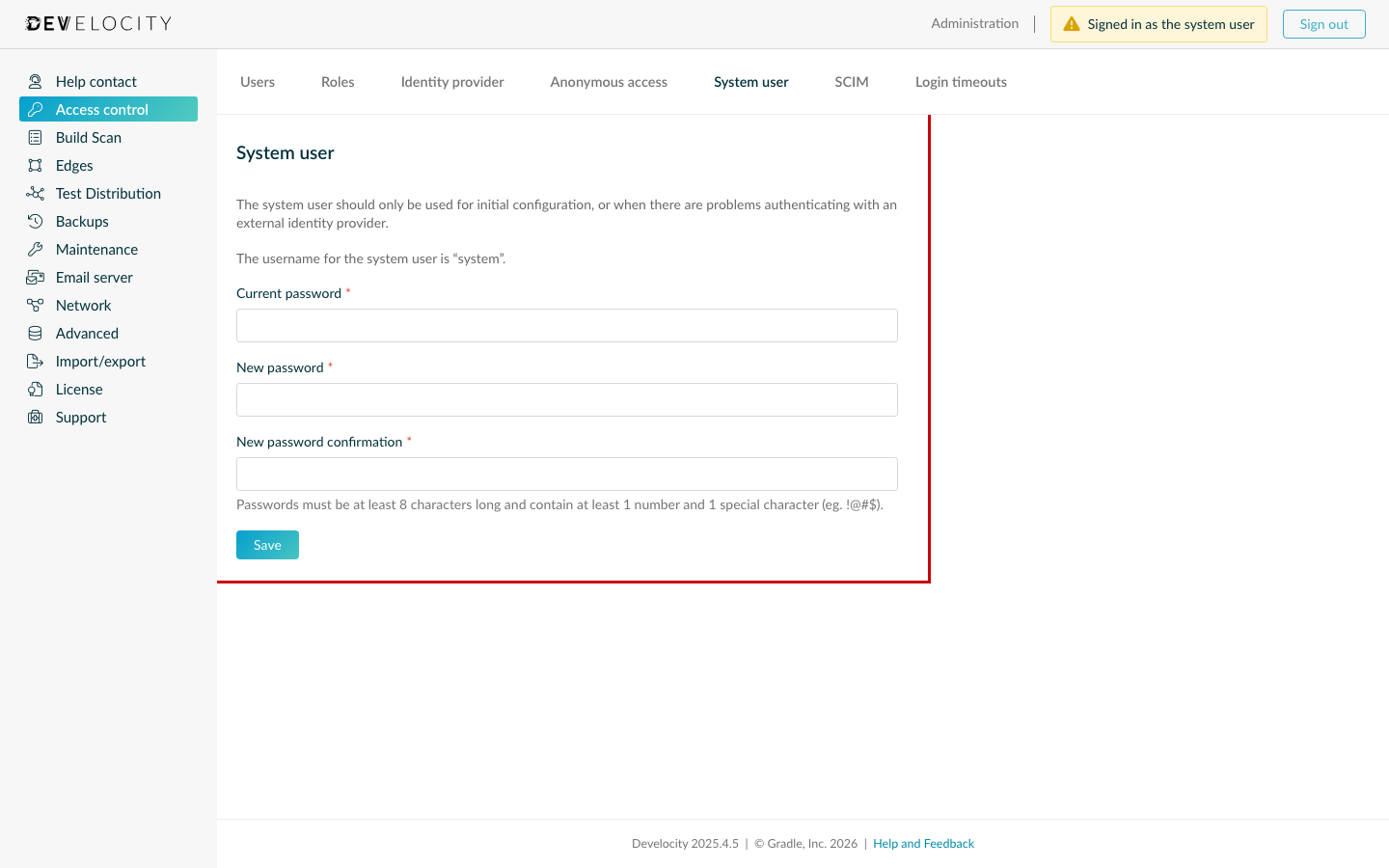
Configuration Fields
Setting |
Description |
Current password |
The existing password for the |
New password |
The new password you want to set for the |
New password confirm |
Re-enter the new password to confirm it matches the intended value. |
|
Users with the Configure access control permission can also reset the |
Obtaining the Default Password
If you don’t have a custom password yet, use one of the following methods to retrieve the system-generated default.
Using develocityctl
The Develocity CLI is the recommended method and provides the most direct way to retrieve or reset the password:
develocityctl system get-default-system-passworddevelocityctl system reset-system-passwordResetting a Lost Password
If you’re locked out without the custom password, you can force a reset using the Develocity CLI system command.
This doesn’t require the current password.
develocityctl system reset-system-password