Support and Diagnostics
To find the root cause of a technical issue, Develocity support might ask you for diagnostic data.
Develocity provides two primary diagnostic tools:
-
Support Bundles for system-wide health.
-
Build Scan Dumps for issues related to a specific build.
Support Bundle
A support bundle is a comprehensive package containing server logs, system performance metrics, and database statistics. It provides our engineers with a "snapshot" of your installation’s health. Data for externally provisioned Edge nodes are collected separately, as described in the Edge Manual.
Generate via the User Interface
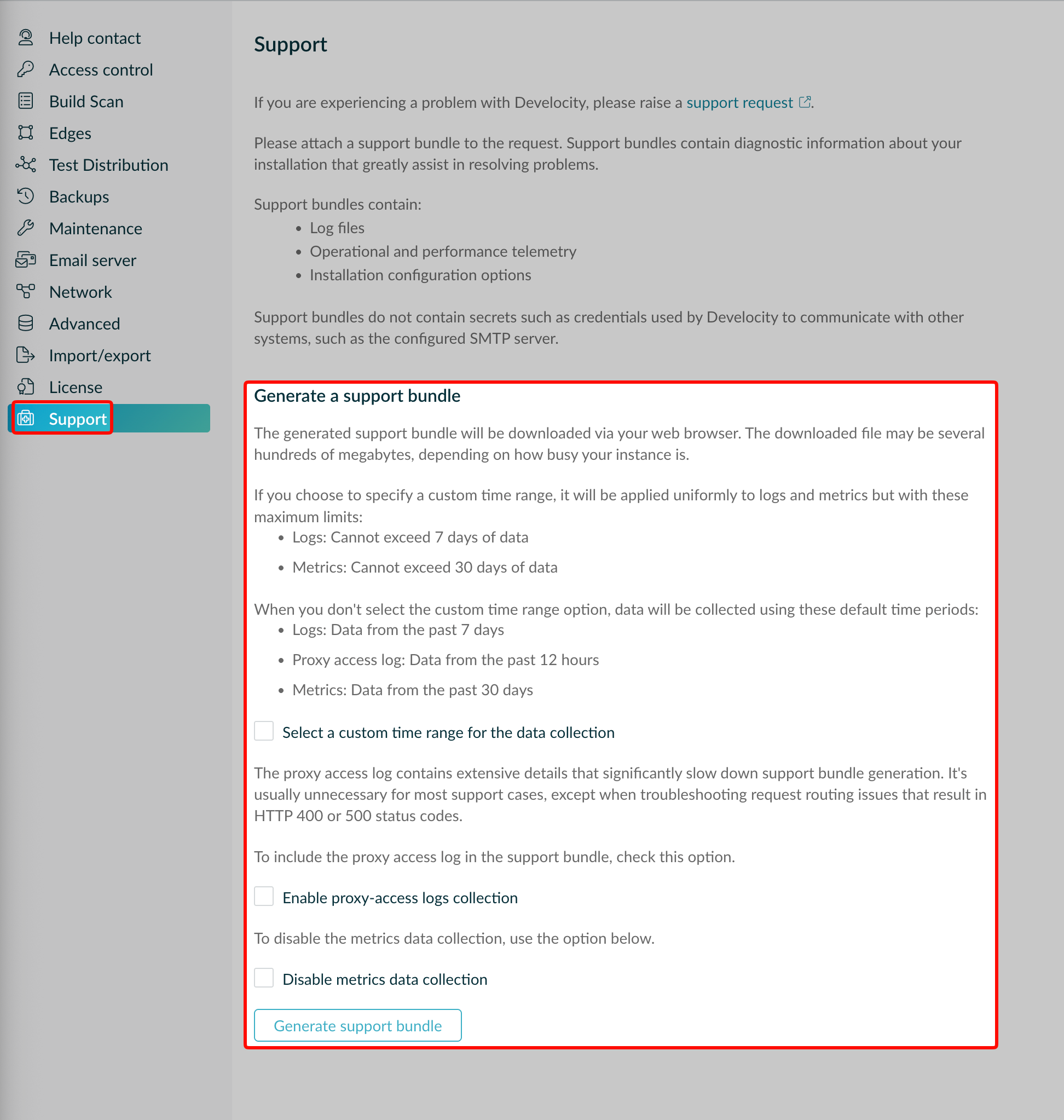
This is the recommended method for most troubleshooting scenarios.
-
Log in to Develocity as a user with the Generate support bundles permission.
-
Navigate to .
-
Decide whether to select a custom time range or include all available data.
-
Decide whether to include proxy-access logs (if applicable).
-
Decide whether to disable metrics data collection during bundle generation to reduce the bundle size.
-
Click Generate support bundle.
-
Wait for the progress bar to complete. Your browser will automatically download the
.ziparchive.
Generate via the Develocity CLI
If the Develocity user interface is unavailable or unresponsive, you can generate the bundle directly from the command line.
Use the develocityctl to generate a support bundle by running the following command in your terminal:
-
develocityctl JAR
-
develocityctl Docker image
# Using the develocityctl JAR
java -jar develocityctl.jar --kube-ns=develocity support-bundle
# Using the develocityctl Docker image
docker run --rm -it \
-v "${HOME}/.kube/config:/kube-config:ro" \
-v "${HOME}/bundles:/home" \
gradle/develocityctl --kube-ns=develocity support-bundle|
Generation can take several minutes depending on the size of your logs and database statistics. |
Build Scan Dumps
If an issue affects one specific build, such as missing data or an incorrect visualization, you can provide a dump of that one Build Scan.
How to Generate a Dump
The UI has no button for this. Instead, you edit the Build Scan URL yourself.
-
Open the Build Scan you want to investigate in your browser.
-
In the address bar, replace
/s/with/scan-dump/.-
Original:
https://develocity.example.com/s/fmhyzs45gaepw -
Modified:
https://develocity.example.com/scan-dump/fmhyzs45gaepw
-
-
Press Enter. The browser will automatically download a
.scandumpfile.
Submitting a Support Request
Once you have gathered your diagnostic data:
-
Navigate to the Develocity Support Portal.
-
Open a new support ticket.
-
Attach your
.zipsupport bundle or.scandumpfile. -
Provide a detailed description of the symptoms and the time the issue occurred.