Email Server
Configure Develocity to send automated email alerts for system events, such as low disk space warnings or the completion of scheduled backups.
Configure via the User Interface
To enable and configure email alerts in the Develocity UI:
-
Log in to Develocity as a user with Administrator permissions.
-
Navigate to .
-
Check the Enable email configuration checkbox to reveal the SMTP settings.
-
Enter your SMTP Host, Port, and security preferences.
-
Provide the From Address (the sender) and the Administrator Address (the recipient of system alerts).
-
Click Save to store the settings, then click Apply and restart in the upper-right corner to activate them.
|
Applying the configuration updates the system services and can take several minutes to complete. |
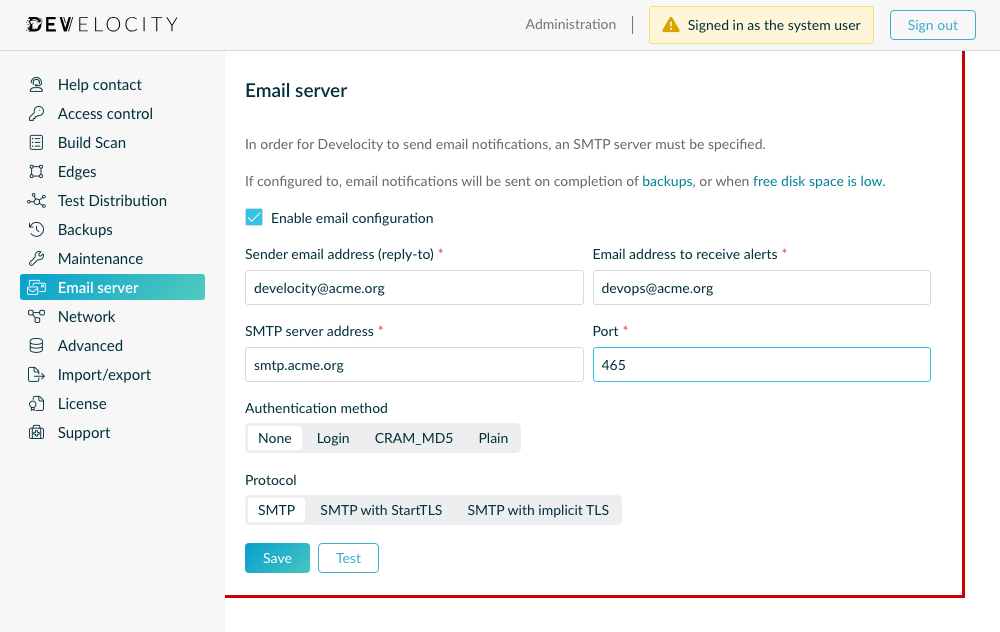
Configuration Fields
| Setting | Description |
|---|---|
From Address |
The email address that will appear as the sender of system-generated notifications. |
Administrator Address |
The primary recipient for all system-generated notifications and alerts. |
SMTP Server |
The hostname or IP address of your SMTP server (e.g., |
Port |
The port number used to connect to the SMTP server. |
Authentication |
If your server requires login, select the mode (Login, CRAM_MD5, or Plain) and enter the credentials. Select None if the server doesn’t require authentication. |
SSL Protocol |
Select the protocol required by your mail server: SMTP (no encryption), SMTP with StartTLS, or SMTP with implicit TLS. Secure connections are strongly recommended. |
Configure via Unattended Configuration
If you are managing Develocity using a GitOps or automated workflow, you can define the global settings using Unattended Configuration. Depending on your deployment strategy, you can provide these settings either as Integrated configuration within your values.yaml or as a Standalone configuration file.
Configure email notifications with the top-level email section of the unattended configuration file.
Including the section enables email notifications. There is no separate enabled property.
To disable email notifications, omit the section.
version: 16
systemPassword: "«hashed-system-password»"
email:
  smtpServer: "smtp.acme.org:465" (1)
  administratorAddress: "[email protected]" (2)
  fromAddress: "[email protected]" (3)
  sslProtocol: "implicitTls" (4)
  authentication:
    type: "login" (5)
    username: "service-auth"
    password: "plain:«smtp-password»" (6)
| 1 | Specify the SMTP server and port in the format hostname:port. |
| 2 | Provide the administrator email address that will receive system notifications. |
| 3 | Provide the email address that will appear as the sender of system-generated notification. |
| 4 | Options: startTls or implicitTls. Omit the property for an SMTP connection without encryption. |
| 5 | Options: login, cramMd5, or plain. Omit the authentication section if the server doesn’t require authentication. |
| 6 | Prefix a plain text password with plain:, or encrypt it as described in Encrypting Secret Values. |
Deployment Templates
Download the appropriate YAML template to begin your infrastructure configuration.
For Develocity versions 2025.3 and prior, see the 2025.2 Administration Guide or the 2025.3 Administration Manual.
| Cluster Deployment |
Example template for cluster orchestration. |
| Standalone Deployment |
Example template for standalone setup. |
|
Pre-deployment Checklist
See Unattended Configuration for details. |