Develocity Reporting via Amazon Athena User Manual
You are viewing the documentation for Athena Data Export version 2.0. Users still utilizing version 1.0 can find its manual at the following Develocity Reporting via Amazon Athena Installation Manual 1.0.
Introduction
This guide provides instructions for visualizing Develocity build data in Grafana dashboards by exporting the build data as build models to Amazon S3 and querying them via Amazon Athena as part of DRV 2.0.
|
If you want to visualize Develocity build data without using AWS services, you can install the Develocity Reporting Kit. |
Build Data
A Build Scan® is a persisted record of a single build’s captured data. Each Build Scan consists of thousands to millions of very fine-grained events. Build models aggregate these events into higher-level structures to expose easily consumable, summarized information about the build.
The build models can be exported to Amazon S3 to serve as input to an external big data engine, and they can be consumed via the Develocity API. This guide focuses on exporting the build models to Amazon S3 and their consumption by Amazon Athena.
The build models that are available to DRV are served by the builds endpoint of the Develocity API.
|
All builds exported to S3 via the Athena Data Export functionality are subject to the same retention period that’s configured for Develocity |
Very Large Builds Span Multiple Rows
Amazon Athena limits the size of a single row, and of any of its columns, to 32 MB.
A very large build can produce a build model that reaches this limit.
Develocity 2026.3 stores such a build as more than one row in the build and internal_build tables, numbered by the drv_shard column.
Releases before 2026.3 dropped the build instead, so its data never reached Athena.
The summary views and the provided Grafana dashboards account for this, so they need no change.
A query of your own against the raw build or internal_build table does need a change, described in Appendix H.
=== Upgrading From V1.0
For any customers that are currently using Athena V1.0 via the Build Model Export feature and wishing to upgrade, please follow the upgrade instructions in Appendix E
Upgrading Athena Data Export
The Athena Data Export process changed twice.
Develocity 2025.3 added the synchronized process alongside the original one-off one, and Develocity 2026.1 removed the one-off process together with the athenaDataExport.exportType and athenaDataExport.oneOffExportDatabase settings that chose between them.
Those settings only existed to make the transition gradual.
If you are on a release earlier than 2025.3, follow Appendix F to move to the synchronized process, then Appendix G before going to 2026.1 or later.
If you are on 2025.3 or 2025.4 and still set either setting, follow Appendix G, which covers both the upgrade path that keeps reporting data available and the shorter one that does not.
Setup
The process for setting up the infrastructure at a high level is as follows:
-
Create a database in AWS Glue containing the table of the build models.
-
Create a workgroup in Amazon Athena to query the table with the build models.
-
Configure the AWS permissions required for the Athena Data Export process to run.
-
Set up the build model schema in Amazon Athena.
-
Enable Athena Data Export in Develocity to populate and optimize the raw data.
-
Verify the Athena Data Export process by issuing a build model query from Amazon Athena.
-
Create a data source in Grafana for the table you created in Amazon Athena.
-
Create a Grafana dashboard that visualizes data from the build models.
-
Import the Grafana dashboards from the dashboard bundle.
In the following steps, we will outline how each step can be completed.
Prerequisites
The prerequisites are as follows:
-
A Develocity account with the Configure access control and Configure operational settings permissions (just Administer Develocity on pre-2025.4 Develocity instances) for configuring Develocity.
-
An Amazon S3 location to store the exported data
-
An AWS account with permissions to configure Amazon Athena and AWS Glue.
-
A Grafana instance (on-premises or cloud) with the Athena plugin installed.
Configure AWS Glue
Athena uses Glue to store the table schema. To create a database inside the data catalog, follow the Glue instructions at Working with databases on the AWS Glue console.
This guide assumes the created database is named develocity-db, but you may choose a different name.
Configure Amazon Athena
Create an Athena workgroup and table to build models from Develocity. You will need the AmazonAthenaFullAccess managed policy to perform these tasks.
Create an Amazon Athena Workgroup
An Athena workgroup is required to define the parameters for running queries against the build models. To create an Athena workgroup, follow the Athena instructions at Create a workgroup.
In step 5, do the following:
-
Choose Athena SQL as the engine type.
-
Specify a new folder in your S3 bucket to store Athena’s query results in Location of query result on the Query result configuration pane.
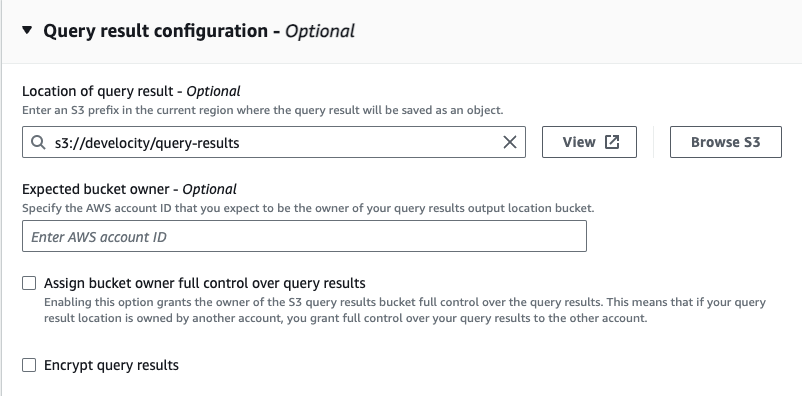 Example of the Athena Query Result Configuration Pane
This guide assumes the query results folder is named query-results in an S3 bucket named develocity and the created workgroup is named develocity-wg, but you may choose different names.
|
Pay attention to AWS’ suggestions for lifecycle configuration. Resource usage and costs may increase significantly if this isn’t configured. |
Configure AWS Permissions
The AmazonAthenaFullAccess managed policy covers all the required permissions for any credentials that the Athena Data Export process and related features will make use of.
However in cases where the granted permissions are too broad, the minimal permissions required for the Athena Data Export process are as described below.
|
These are additional permissions required for using the Athena Data Export process. Any existing S3 permissions set up for Develocity are still required. |
{
	"Version": "2012-10-17",
	"Statement": [
		{
			"Effect": "Allow",
			"Action": [
				"s3:GetBucketLocation",
				"s3:GetObject",
				"s3:DeleteObject",
				"s3:ListBucket",
				"s3:ListBucketMultipartUploads",
				"s3:ListMultipartUploadParts",
				"s3:AbortMultipartUpload",
				"s3:CreateBucket",
				"s3:PutObject",
				"s3:PutBucketPublicAccessBlock"
			],
			"Resource": [
				"arn:aws:s3:::${name.of.bucket}", (1)
				"arn:aws:s3:::${name.of.bucket}/*" (1)
			]
		},
		{
			"Effect": "Allow",
			"Action": [
				"athena:GetQueryExecution",
				"athena:GetQueryResults",
				"athena:GetQueryResultsStream",
				"athena:GetWorkGroup",
				"athena:StartQueryExecution",
				"athena:StopQueryExecution"
			],
			"Resource": [
              "arn:aws:athena:*:*:workgroup/${name.of.workgroup}" (2)
			]
		},
		{
			"Effect": "Allow",
			"Action": [
				"glue:GetDatabase",
				"glue:GetDatabases",
				"glue:GetTable",
				"glue:GetTables",
				"glue:GetPartitions",
				"glue:GetPartition",
				"glue:BatchCreatePartition",
				"glue:BatchDeletePartition",
				"glue:CreateDatabase",  (3)
				"glue:CreateTable",  (3)
				"glue:UpdateTable",  (3)
				"glue:DeleteTable"  (3)
			],
			"Resource": [
				"arn:aws:glue:*:*:catalog", (4)
				"arn:aws:glue:*:*:database/${name.of.glue.db}", (4)
				"arn:aws:glue:*:*:table/${name.of.glue.db}/*" (4)
			]
		},
		{
			"Effect": "Allow",
			"Action": [
				"athena:ListDatabases"
			],
			"Resource": [
				"*"
			]
		}
	]
}| 1 | ARN of the S3 bucket used to store the results.
Replace ${name.of.bucket} with the value used in the ${s3.path} placeholder when setting up the DDL. |
| 2 | ARN of the created workgroup.
Replace ${name.of.workgroup} with the Athena workgroup created earlier, assumed to be develocity-wg. |
| 3 | These permissions are only required if you are using the automatic schema management feature, and can be excluded if the feature is disabled. |
| 4 | ARN of the Glue database and tables. The resources are of the following pattern (replace ${name.of.glue.db} with the database name created earlier, assumed to be develocity-db): |
${arn:partition:service:region:account-id}:catalog
${arn:partition:service:region:account-id}:database/${name.of.glue.db}
${arn:partition:service:region:account-id}:table/${name.of.glue.db}
Set Up the Athena Schema
The Athena Data Export process requires a schema to be set up in Amazon Athena to make the stored build models queryable. This schema describes the structure of the build models and how they’re stored in S3. Starting from Develocity version 2025.3, Develocity will automatically create and manage all the schema, views and tables required for the Athena Data Export process to function. For more information on this, see Automatic Schema Management. For users that prefer to manage the schema themselves, the steps to take are described in Appendix D.
|
Although using the default automatic schema management is recommended for a smoother experience, it isn’t required to use the Athena Data Export process. See Appendix D for details on how to set up a user-managed schema. |
Enabling Athena Data Export in Develocity
S3 Object Storage Configuration
Before you can enable the Athena Data Export process, you need to ensure that Develocity has access to an S3 bucket to store the exported build models so that they’re accessible by Athena.
The following configuration block of the values.yaml Helm chart demonstrates the minimal configuration to enable Object Storage in S3.
objectStorage:
  type: s3
  s3:
    bucket: develocity
    region: AWS_REGION
    credentials:
      type: keys
      keys:
        accessKey: "AWS_ACCESS_KEY"
        secretKey: "AWS_SECRET_KEY"
Replace the following:
-
AWS_REGION: the AWS Region of the S3 bucket, for exampleus-east-1. -
AWS_ACCESS_KEY: the access key ID of an IAM user that can access the bucket. -
AWS_SECRET_KEY: the secret access key of that IAM user.
| You don’t need to store your Build Scan data in S3 to export the build models to S3. |
Please refer to the “Amazon S3” section in the Standalone Helm Chart Configuration Guide or the Kubernetes Helm Chart Configuration Guide for more information on configuring Amazon S3 as Object Storage.
Athena Data Export Configuration
You can enable the Athena Data Export by setting the appropriate values in your Develocity values.yaml, which can be obtained from the setup done so far.
athenaDataExport:
  enabled: true
  workgroup: $WORKGROUP (1)
  region: $REGION (2)
  catalog: AwsDataCatalog
  database: $DATABASE (3)
  credentials:
    type: irsa (4)
    irsa:
      serviceAccountAnnotations: (5)
    keys:
      accessKey: (6)
      secretKey: (6)
      secretName: (6)
| 1 | The name of the workgroup you created in Amazon Athena (assumed to be develocity-wg) |
| 2 | The AWS region where the workgroup is located. |
| 3 | The name of the Glue database you created (assumed to be develocity-db). |
| 4 | Must be one of irsa / instanceProfile / keys |
| 5 | Can only be set if irsa is set as the credentials type.
For more details on IRSA refer to IAM roles for service account. |
| 6 | Can only be set if keys is set as the credentials type.
Either accessKey and secretKey must be set with the AWS access key and secret key, or else a secretName provided which references the name of a Kubernetes secret containing accessKey and secretKey keys. |
Automatic Schema Management
Enabled by default, Develocity will automatically create and manage the schema required for the Athena Data Export process to function. This allows for a smoother experience when setting up the Athena Data Export process, as well as keeping the schema up to date in future releases. For some customers, however, this may not be desirable. This could be due to organizational policies that require strict control over changes to the schema.
|
Develocity will only manage the schema for the new synchronized Athena Data Export process introduced in version 2025.3. If you choose to use the legacy one-off Athena Data Export process, or you keep running it alongside the new synchronized Athena Data Export process, you will need to manage the schema for the legacy one-off Athena Data Export process yourself. To manage the schema manually you can follow the steps in Appendix D. |
To disable automatic schema management, add the following property to your Develocity values.yaml:
athenaDataExport:
  schemaManagement:
    enabled: false
By default the automatic schema management is using the same credentials as the Athena Data Export process itself. This can be overridden by specifying a different set of credentials for the schema management process:
athenaDataExport:
  schemaManagement:
    enabled: true
    credentials: (1)
      type: irsa (2)
      irsa:
        serviceAccountAnnotations: (3)
      keys:
        accessKey: (4)
        secretKey: (4)
        secretName: (4)
| 1 | Optional: the credentials to use for automated schema management. Since the automatic schema management process requires broader permissions, this allows you to minimize the permissions granted to the Athena Data Export process. See Configure AWS permissions for more details. |
| 2 | If specified, must be one of irsa / instanceProfile / keys |
| 3 | Can only be set if irsa is set as the credentials type.
For more details on IRSA refer to IAM roles for service account. |
| 4 | Can only be set if keys is set as the credentials type.
Either accessKey and secretKey must be set with the AWS access key and secret key, or else a secretName provided which references the name of a Kubernetes secret containing accessKey and secretKey keys. |
This will also ensure that the schema will be kept up to date in future releases, should there be any changes to the schema.
Verify the Amazon Athena Setup
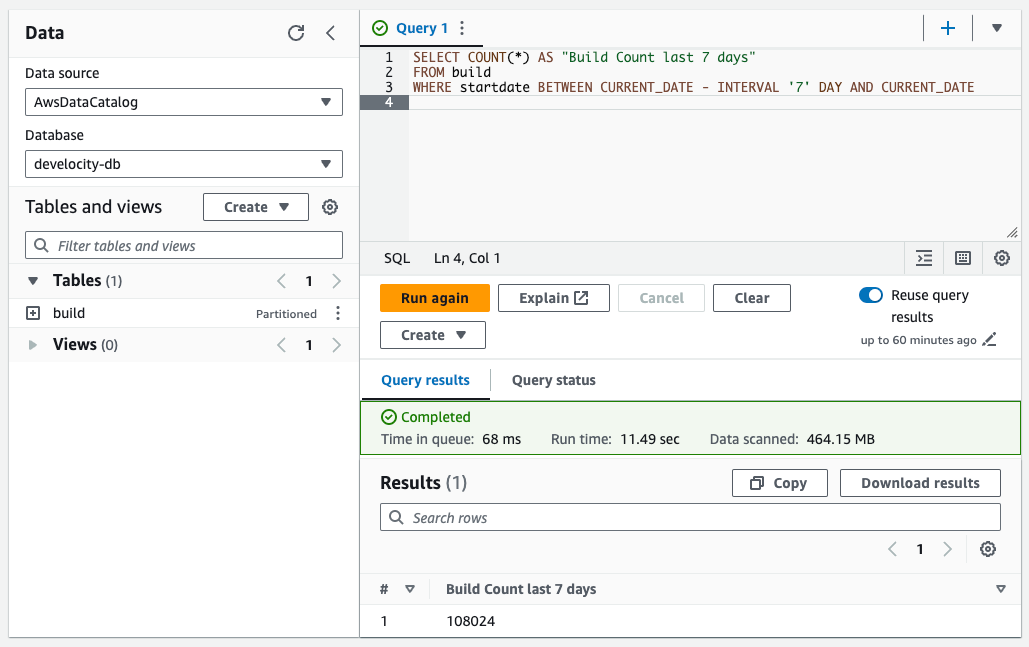
Run a simple query against the build table to verify that the Athena Data Export process is properly set up and connected to AWS.
In the Query Editor, select the database you created in Glue and issue a simple build model query:
SELECT COUNT(*) AS "Build Count last 7 days"
FROM build
WHERE build_start_date BETWEEN CURRENT_DATE - INTERVAL '7' DAY AND CURRENT_DATE
  AND COALESCE(drv_shard, 0) = 0
The build_start_date column is a partition key in the table, and queries that filter on this column will be more efficient.
|
The drv_shard condition counts a very large build one time.
See Very Large Builds Span Multiple Rows.
The results are displayed in a table below the Query Editor:
Configure Grafana
This requires a Grafana instance (on-premises or cloud) with the Athena plugin installed.
Connect to Amazon Athena
Add a data source pointing to your Glue database and Athena table. To create a data source, follow the Grafana instructions at Configure the data source in Grafana.
In step 2, do the following:
-
Enter your AWS credentials and default region in Connection Details (see the Athena plugin for Grafana documentation for the different authentication options).
-
Select AWSDataCatalog from Data source.
-
Select the database you created in Glue from Database.
-
Select the workgroup you created in Athena from Workgroup.
-
Leave Output Location empty to use your workgroup’s default output location.
-
Click Save & test.
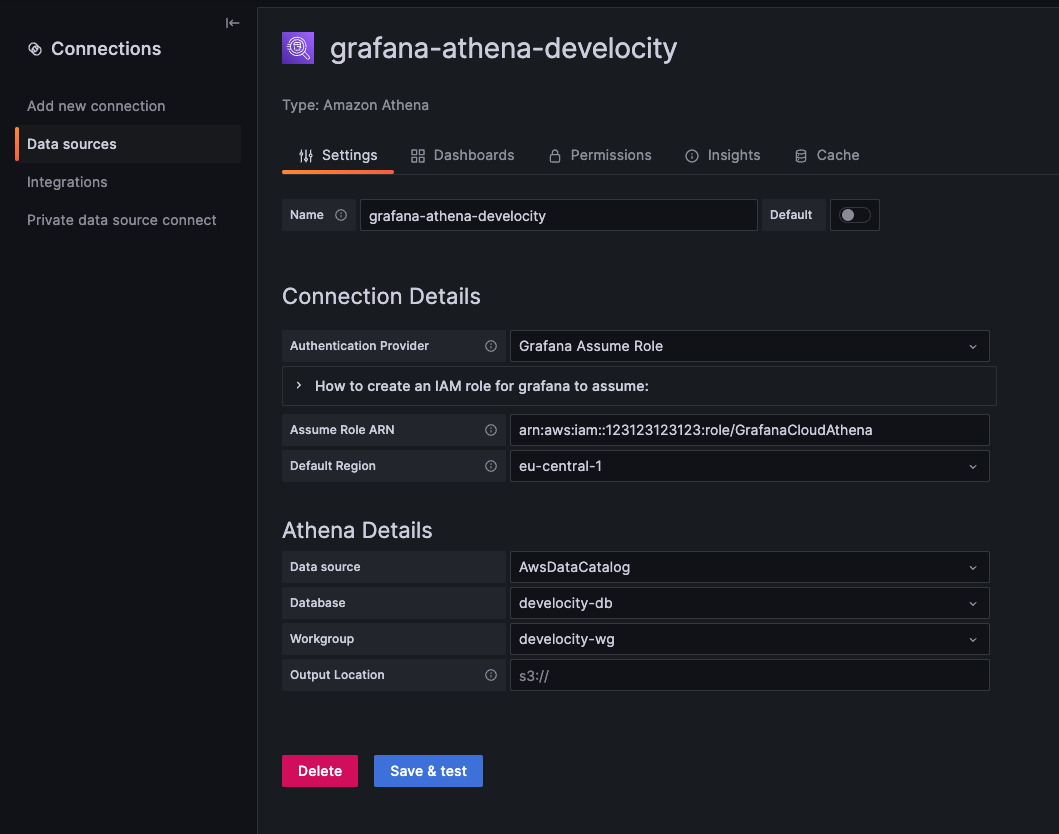 Example of Adding Athena as a Datasource to Grafana
|
If you use Grafana Cloud and choose to provide authorization using the AWS Assume Role feature, note that this feature is in private preview. You must contact technical support at Grafana to enable it for your stack. |
See Grafana data sources for more information.
Create a Dashboard
Create a Grafana dashboard that displays Develocity build data in a chart. To create a dashboard, follow the Grafana instructions at Create a dashboard.
In step four, select the Grafana data source you previously created from Data source.
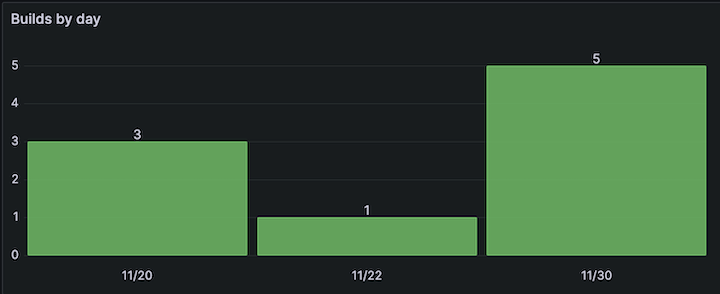
The following image shows a bar chart visualization of the number of builds grouped by day using the following query:
SELECT count(DISTINCT id), build_start_date
FROM build
WHERE $__dateFilter(build_start_date) (1)
GROUP BY build_start_date| 1 | The $__dateFilter macro is provided by the Athena data source and is used to inject the time range selected in the Grafana dashboard as a filter criterion of the query. |
See Grafana dashboards for more information.
Import the Bundled Dashboards
The dashboard bundle provides a set of pre-defined, JSON-based Develocity dashboard definitions. Importing them is documented in Installing the Dashboard Bundle for Amazon Athena, which covers Grafana and build environment compatibility, the Athena data source prerequisites, and every installation method: Grafana’s built-in provisioning, Helm and Kubernetes provisioning, manual import via the Grafana UI, and Amazon Managed Grafana with Terraform.
Download the bundle from Downloads. Contact your technical contact at Gradle for assistance integrating the dashboards into your on-premises or cloud Grafana instance.
Upgrading
Upgrading Athena Tables
After 2025.3, Develocity will automatically manage the schema required for the Athena Data Export process to function. If you are using the automatic schema management, no action is required to upgrade the Athena tables.
When upgrading Develocity, the schema of the build models may change, and existing views may be updated to include new data to be consumed via the dashboards. This would require updating the Athena tables and views to reflect the new schema.
The automatic schema management will follow the process outlined below to upgrade the tables as needed. All data queried by Athena is stored in external tables or views. Both of these constructs don’t store any data themselves but rather point to the location of the data, that ultimately resides in S3 buckets. This means there is no data loss when dropping the tables or views.
As such, upgrading the Athena tables is a simple process of dropping the tables and views, and re-creating them with the new schema. The same steps as in the initial setup can be followed, but with the updated schema files downloaded from the dashboard bundle.
Upgrading Grafana Dashboards
Upgrading the bundled dashboards is documented in Upgrading in the dashboard bundle component, which covers each Grafana installation type. Upgrading the Athena tables and views is covered in Upgrading Athena Tables above.
Appendix
Appendix A: Disabling V1.0 Build Model Export
To disable the V1.0 Build Model Export via UI, follow these steps:
-
Navigate to
-
Select Delete for the
feature.buildModelExport=ENABLEDline in Config parameters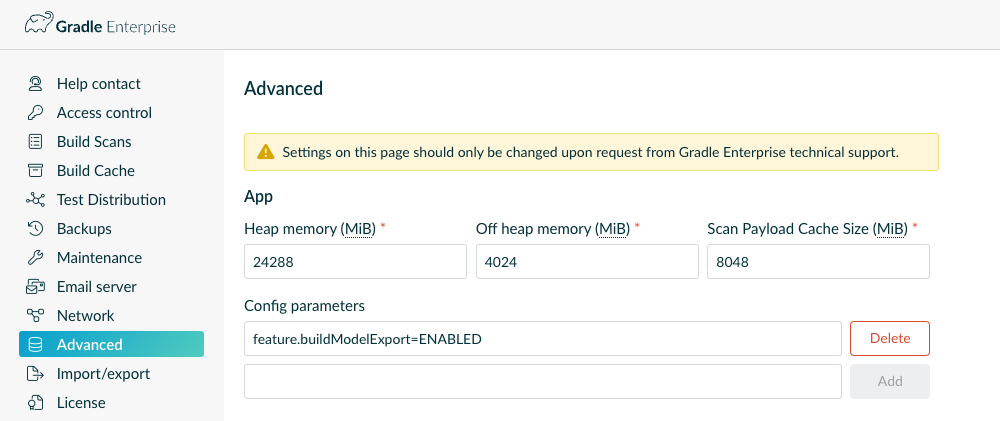 Example of Disabling the v1.0 Build Model Export
-
Select Save
-
Follow the instructions to restart the Develocity server
If the V1.0 Build Model Export was enabled via unattended configuration, you can disable it by updating the following configuration in your unattended configuration file or removing it entirely:
advanced:
  app:
    params:
      feature.buildModelExport: DISABLED
  # configure here when using a separate bg processor
  # appBackgroundProcessor:
  #   params:
  #     feature.buildModelExport: DISABLED
For more information, see the “Unattended configuration” section in the Develocity Administration Manual for Helm Installations.
Appendix B: Dashboard Bundle Downloads
The dashboard bundle, its contents, and its release history are documented in the Develocity Reporting and Visualization Dashboard Bundle component.
-
Download the bundle from Downloads.
-
The Athena schema change history is in Release History.
Appendix C: Athena Network Connectivity
The Athena Data Export process connects to Amazon Athena over two different ports:
-
Port 443 to connect to the host
-
Port 444 to stream the query results
If you are experiencing timeouts or connection issues, check your network configuration to ensure that these ports are open and accessible.
For more details refer to the Amazon Athena documentation.
Appendix D: User-Managed Athena Schema
Using the Athena Console
The schemas used for the Athena Data Export are provided as part of the dashboard bundle. To apply them, first download the dashboard bundle corresponding to your Develocity version.
The DDL for the tables/views is contained in individual files within athena/v2/ddl.
In case you are using the one-off Athena Data Export, they can be found in athena/one-off/ddl.
Using the Athena console, you can run the DDL scripts in your Athena database. Since Athena only allows executing one statement at a time, some tables/views have been split into multiple files for convenience.
For first time setup, all the statements in all the files must be run in numerical order.
For later upgrades, it’s sufficient to update only the tables and views that changed, in numerical order. All updates to the schema are described in the Athena schema change history.
|
Our Athena tables are created by reading existing data from S3 buckets as external tables, and cannot modify that data. Because of this, dropping the tables and replacing the views won’t result in any data loss, making it safe to run all the statements included in the dashboard bundle. |
The bundles contain two placeholders that need to be changed before the statements are executed:
-
Replace the
${s3.path}placeholder to point to the S3 location used to save the build models.In contrast, if you are applying the schemas for the one-off export, it must instead include
athena-data-export, for example,s3://develocity/athena-data-export.+For the new synchronized Athena Data Export use the following script to replace the placeholder in all the files:
By default, the new value needs to include
reporting, for example,s3://develocity/reporting/.For the one-off sync use the following script to replace the placeholder in all the files:
The new value needs to include
athena-data-export(unless a different prefix was configured), for example,s3://develocity/athena-data-exportfind ./ddl -type f -name '*.sql' -exec sed -i.bak 's/${s3.path}/YOUR-S3-PATH\//g' {} \; \ && find ./ddl -type f -name '*.sql.bak' -exec rm {} \;
For each of the individual files in Athena, follow these steps:
-
Select the database you created in Glue previously.
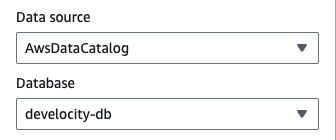 Example of Selecting the Athena Database
-
In the Query Editor, select Create in Tables and Views, then select Create Table.
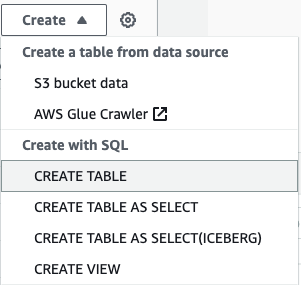 Example of Creating a New Table/View
-
Enter the DDL statement for the table/view from the dashboard bundle.
-
Select Run.
-
Verify that the query was executed successfully. For the first time setup, Athena might report a warning about items missing from the filesystem - this is expected and can be ignored.
|
The |
See Creating tables using AWS Glue or the Athena console for more details.
If you have any questions or need any assistance, contact Develocity support. We can provide snippets or resource definitions and their adaptions to any special requirements you may have.
Using Terraform
If you use Terraform to manage your AWS resources, we provide a set of Terraform modules and scripts alongside the dashboard bundle to create and populate an Athena workgroup and the required tables.
When creating the tables using Terraform, there are a few caveats to consider.
Views
The AWS terraform resources don’t support creating Athena views out of the box. This repository provides the possibility to create Athena views with some workarounds.
Column Types
For Athena views and tables, it’s required that the terraform resource has all column types explicitly defined for all tables and views. A mismatch between the column types of the views and their respective tables will cause the data export not to work.
Column Order
The Athena views expose many fields nested in different structures of the exported build models. The field order defined in Terraform and in the views must match. If there is a mismatch, the data will be attributed to the wrong column, leading to incorrect results or errors in the dashboards.
Appendix E: Upgrading From V1.0
The V2.0 Athena Data Export and the V1.0 Build Model Export work entirely independently and have different data formats. Existing build model data stored in the V1.0 format cannot be viewed in the V2.0 format. Likewise, data exported in the V2.0 format cannot be viewed in the V1.0 format.
| The two processes can be run in parallel, but it’s recommended to disable the V1.0 Build Model Export entirely once data parity is achieved. See Appendix A for details on how to disable the V1.0 export process. |
Upgrading from V1.0 requires a complete new setup, so please follow the steps detailed in the Setup guide.
| The following two changes must be noted when upgrading from V1.0 |
When creating the Athena database, note that the database name must be different from the one used in the previous setup to avoid collisions.
When upgrading, you can skip setting up a new workgroup, these can be reused between versions
Appendix F: Changes After 2025.3
In the 2025.3 release the Athena Data Export process was re-implemented to provide a more robust and scalable solution. This new implementation is used by default when installing or upgrading to 2025.3 or later. The new implementation constantly synchronizes the exported Build Models with Develocity, thus providing a consistent view at all times. This allows us to keep adding new data and not have to rely on re-running the export process manually. In this documentation we will refer to this new engine as "synchronized Athena Data Export" and the old implementation as "one-off Athena Data Export".
Build data exported from Develocity will now be subject to the configured retention period and will be directed to a new location within the designated S3 bucket. It’s important to note that previously exported build data won’t be migrated. Instead, Develocity will initiate a fresh export of all currently retained builds to the new location. This re-export process may be time-consuming and could temporarily strain your Develocity instance until all historical builds have been caught up. Develocity will automatically update the schema definitions of your Glue database to reflect the new S3 location, which will necessitate additional permissions in the attached IAM policy. While this new data export mechanism is the default, Develocity offers configuration options to facilitate a smooth transition. Users have the choice to continue using the existing export method or to configure a second Glue database, allowing the existing export mechanism to run in parallel with the new one until the transition is complete.
Maintaining Data Availability Throughout the Upgrade
As explained above, the new synchronized Athena Data Export needs to re-export all historical builds that are still retained in Develocity. This can take a significant amount of time depending on the number of builds that need to be exported. During this time, the data shown in the dashboards will be incomplete. To avoid this situation, you can choose to run both the new synchronized Athena Data Export and the legacy one-off Athena Data Export in parallel until the re-export is complete.
| The settings to enable the one-off Athena Data Export apply to Develocity 2025.3 and 2025.4 only. Develocity 2026.1 removed the one-off Athena Data Export, so these settings are no longer accepted from that release onwards. See Appendix G for the upgrade paths available to you. |
athenaDataExport:
  enabled: true
  exportType: both (1)
  oneOffExportDatabase: $LEGACY_DATABASE (2)
| 1 | Set to both to enable both the new and old export processes. |
| 2 | When both export processes are enabled, this must be set to the name of the Glue database used by the old export process. Note that in the case where both processes are enabled they need to run against different Glue databases. Please note the limitation of the automatic schema management when both export processes are enabled as described in Automatic Schema Management. |
The new Athena Data Export Engine can also be disabled entirely by setting the following in your values.yaml:
athenaDataExport:
  enabled: true
  schemaManagement:
    enabled: false (1)
  exportType: oneOff (2)
| 1 | Since one-off export isn’t supported with automatic schema management, this must be set to false. |
| 2 | Set to oneOff to only enable the legacy Athena Data Export.
Please note the limitation of the automatic schema management when one-off export is enabled as described in Automatic Schema Management. |
Appendix G: Changes After 2026.1
Develocity 2026.1 removed the one-off Athena Data Export.
The oneOff and both values of athenaDataExport.exportType are no longer accepted, and athenaDataExport.oneOffExportDatabase no longer exists.
Synchronized Athena Data Export is now the only export process.
Because exportType has only one remaining value, omit it entirely rather than setting it explicitly.
If either setting is still present in your values.yaml, the Helm chart fails the upgrade instead of silently changing how your build data is exported.
Which upgrade path you take depends on whether you can accept a period without complete reporting data.
Upgrading Without Losing Data Availability
To keep reporting data available throughout, finish the transition to synchronized Athena Data Export before you upgrade to 2026.1:
-
Upgrade to Develocity 2025.3 or 2025.4, and not yet to 2026.1.
-
Follow Appendix F to run the synchronized and one-off export processes in parallel, and wait until the synchronized export has caught up with every retained build.
-
Remove
exportTypeandoneOffExportDatabasefrom yourvalues.yaml. -
Upgrade to Develocity 2026.1 or later.
Upgrading Directly to 2026.1 or Later
If you can accept reporting data being unavailable until it has been re-exported, upgrade directly:
-
Remove
exportTypeandoneOffExportDatabasefrom yourvalues.yaml. -
Upgrade to Develocity 2026.1 or later.
Develocity then re-exports every retained build through the synchronized process. Until that re-export finishes, the dashboards show incomplete data. How long it takes depends on the number of builds Develocity still retains.
Appendix H: Querying Very Large Builds Using the build table
Amazon Athena limits the size of a single row, and of any of its columns, to 32 MB.
This is a hard limit of the service, and AWS documents it under Considerations and limitations for SQL queries in Amazon Athena.
Develocity 2026.3+ stores a build model that reaches this limit as more than one row of the build and internal_build tables, as described in Very Large Builds Span Multiple Rows.
The drv_shard column numbers the rows of one build.
The first row is drv_shard = 0, and the rows after it are 1, 2, and so on.
Develocity slices the large arrays of the build across these rows, for example the task executions and the artifact transform executions.
The other models stay on the first row, so the rows after it hold no value for many columns.
A build under the limit is a single row where drv_shard is NULL.
Two rules apply to a query against the raw build and internal_build tables:
-
When you count builds, or read a scalar or whole-build column, add
AND COALESCE(drv_shard, 0) = 0. This condition keeps the first row of a large build and the single row of a normal build. Without it, a large build is counted multiple times - once for each of its rows.SELECT COUNT(*) AS "Build Count" FROM build WHERE build_start_date >= CURRENT_DATE - INTERVAL '7' DAY AND COALESCE(drv_shard, 0) = 0 -
When you read a sliced array, for example with
CROSS JOIN UNNEST, do not filter ondrv_shard. All rows of the build together hold the complete array. A filter on the first row gives you an incomplete array.
The summary views apply both rules for you.
The provided Grafana dashboards read the summary views, so a query against build_summary or another summary view needs no change.
|
A build model that Develocity cannot slice within the row limit is still not exported. |
Appendix I: Discrepancy in Data Between Athena and Develocity
In certain situations, you may find that queries made to Athena or the provided dashboards show different numbers than the Develocity UI. Most notably, the Build count metric on the Global Volume dashboard might not match the number of builds shown in Develocity’s scan list page for the same time range.
A few factors can cause this discrepancy:
-
Build synchronization from Develocity to Athena isn’t instantaneous. The build data is periodically queued for synchronization. Recent builds may take up to 10 minutes to be queued. The time for the build to appear after that depends on the level of build traffic the Develocity instance experiences. Depending on build traffic, it can take up to 30 minutes for the most recent data to appear in Athena. If it takes longer than that, then there may be a problem, so contact Develocity support.
-
Builds with a start date older than the last 24 hours (as measured by the Athena Data Export in the UTC timezone) may take up to a day after their end date to appear in Athena. The Athena Data Export scans the last 24 hours very frequently for new or modified builds that started within that time frame, but older time ranges are only scanned daily. Builds that started outside the 24-hour window will only appear in Athena in the first daily scan after the build’s end date. Depending on the start time of the build, this would only potentially affect very-long-running builds that have runtimes approaching 24 hours.
-
The queries in the dashboards discard the 'time' part of the dates selected in the date picker and work only on the dates. In addition, the dates are converted to UTC before being sent to the query engine. If a non-UTC timezone is used when selecting the dates in Grafana, this can spill over into the previous or next day, and query results unexpectedly contain a full extra day of data.
Appendix J: Amazon Athena Rate Limiting
Amazon Athena enforces rate limits on the number of requests that can be made to the service within a certain time frame.
Under high load, it’s possible that Athena throttles requests, resulting in failed queries or delayed data updates with error messages similar to: Could not load query results: software.amazon.awssdk.services.athenastreaming.model.AthenaStreamingException: Rate exceeded
In the unlikely scenario that you encounter such rate limiting issues on a regular basis, consider reaching out to AWS support to request an increase in your Athena service limits for the following APIs:
-
GetQueryResults API
-
StartQueryExecution API
-
GetQueryExecution API
More details can be found in the Amazon Athena documentation.